DPI and Tiling
How Windows display scaling affects Classic vs Flow tiling—and why Flow System is the safe choice above 100% DPI.
Getting started
Windows DPI (dots per inch), also called Scale, controls how large text, apps, and UI elements appear. The default is 100%. Values above 100% (for example 125% or 150%) are common on 2K and 4K monitors so everything stays readable.
Scaling above 100% tells Windows to zoom the desktop—merging pixels so text and UI appear larger. Most apps handle this without issue, but software that reads window sizes and screen coordinates through the Windows API can behave unpredictably. Poker table managers, which depend on exact window placement, are especially sensitive.
Flowker and increased DPI
Increased DPI can cause potential issues only when using Classic System.
Classic tiling relies on precise window bounds from Windows. When DPI is above 100%, those coordinates can drift: tables may land in the wrong slot, overlap, or disappear off-screen—especially on multi-monitor setups where the leftmost display does not use 100% scale.
If you want to play with increased DPI, use Flow System only to ensure the best experience.
Flow System is not impacted by DPI the way Classic can be. Flow’s overlay and tiling path is built for scaled displays, so layout, notes, borders, and table snapping stay consistent even when Windows recommends 125% or 150%.
For zero surprises with Classic System, set Scale to 100% on every monitor—even when Windows marks another value as recommended. If you cannot run 100% on all screens, switch to Flow System for tiling.
Change Windows scale
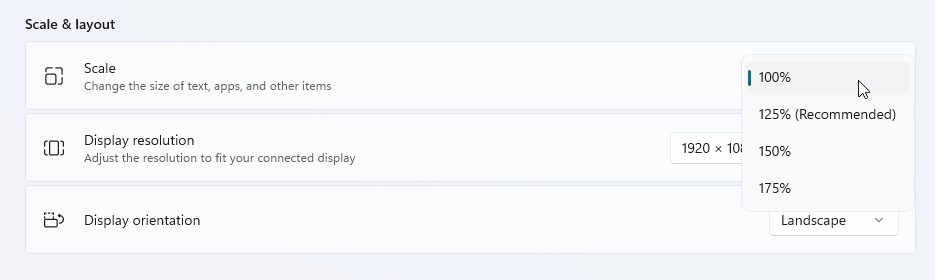
Open Settings → System → Display, then under Scale, pick 100% for each monitor you use for poker.
Classic vs Flow at a glance
| Setup | Increased DPI (above 100%) |
|---|---|
| Classic System | Can mis-tile or lose tables; use 100% DPI on all screens |
| Flow System | Supported; preferred when you run scaled displays |